How to Add llms.txt to WordPress: Control What ChatGPT Says About Your Business
To add llms.txt to WordPress, install the Website LLMs.txt plugin (30,000+ installs), or manually create a Markdown file and upload it to your domain root via FTP. The file tells AI engines like ChatGPT and Perplexity what your business does. The order you list your pages in determines which services they surface.
By Samer Shaker
If You Have a WordPress Site, ChatGPT Probably Knows Almost Nothing About You
Most WordPress site owners have a sitemap. They have Google Search Console. They have done at least some SEO work. And they assume that if Google can find them, so can ChatGPT.
That assumption is wrong.
ChatGPT, Perplexity, and Claude do not read your sitemap. They do not crawl your site the way Googlebot does. When someone asks one of these AI engines a question about your industry, the AI agent goes somewhere completely different: it reads a file called llms.txt.
This file does not exist on your WordPress site by default. You have to create it. And if you have not created it, AI agents are working with incomplete, often inaccurate information about your business.
Here is why this matters right now. AI-referred sessions grew 527% year-over-year between 2024 and 2025. LLM bots now crawl websites 3.6 times more frequently than Googlebot. AI-referred visitors convert 31% better than organic search visitors. That channel is growing fast, and your sitemap will not help you capture it.
llms.txt was proposed by Jeremy Howard of Answer.AI in September 2024 as a standard for websites to communicate with AI agents at inference time. That distinction matters. Googlebot reads your sitemap at crawl time, before any user query. An LLM agent reads llms.txt at inference time, in real-time, while a user is asking a question. Different moment, different file, different purpose.

Most WordPress Owners Get This Wrong: What You Put Inside the File Is What AI Learns About You
Installing a plugin and generating a file is the easy part. Most WordPress site owners do that and assume they are done.
They are not.
The content inside your llms.txt file, and the order you put it in, directly determines what AI engines know about your business. This is what every other tutorial skips.
The order of your sections tells AI what to prioritize about your business
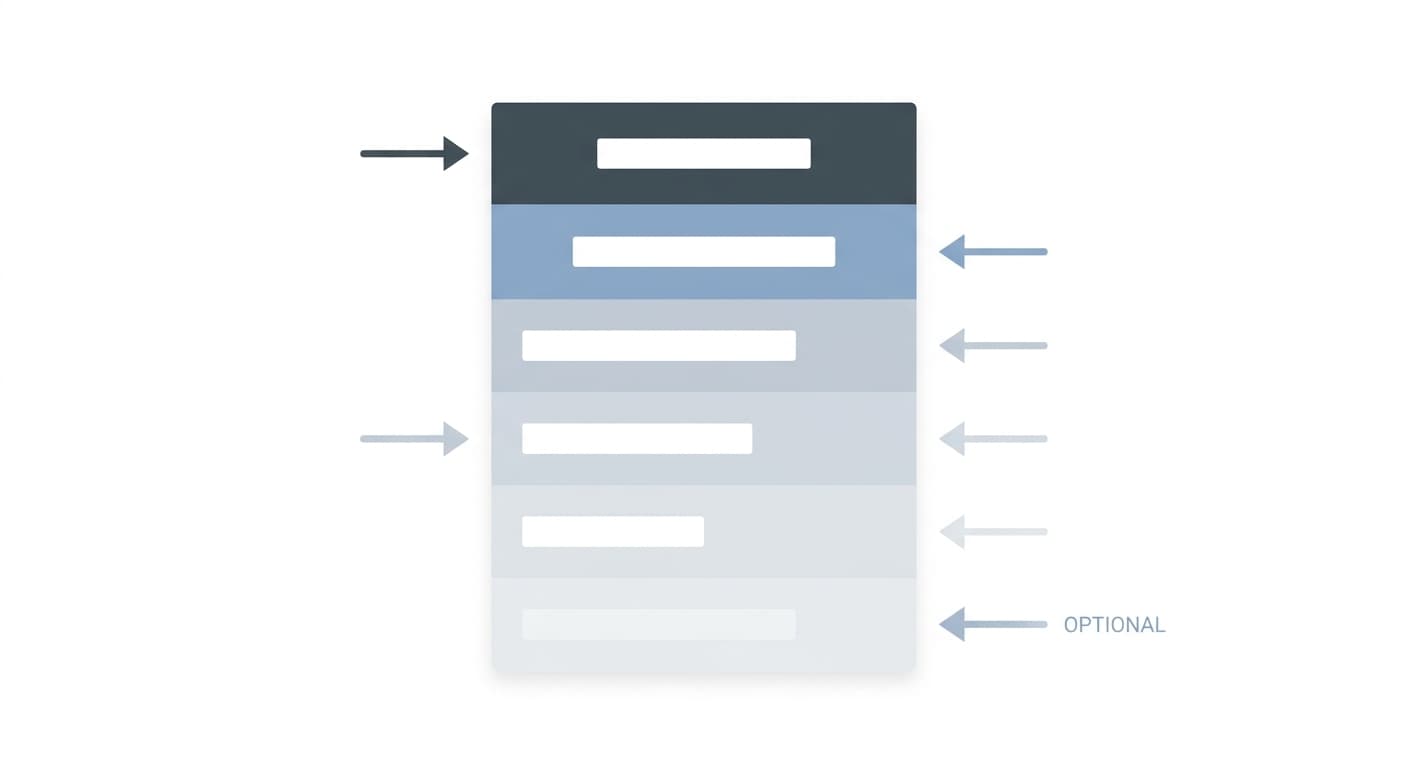
llms.txt is a Markdown file. Its structure is simple: one required H1 heading with your site name, an optional one-line blockquote description, and then H2 sections with lists of links to your key pages. You can review the full specification at llmstxt.org.
Here is the critical part. AI agents read the file top to bottom. The H2 section that appears first is treated as your most important topic. If your services page comes before your blog, the AI treats you as a services business. If your blog comes first, the AI treats you as a content publisher. Order is signal.
Here is what a well-structured llms.txt looks like for a local service business:
# Riverside HVAC Services

> Emergency heating and cooling repair for homeowners in Riverside County. 24/7 service.

## Services
- [HVAC Repair](https://example.com/hvac-repair): Emergency and scheduled repair for all major brands.
- [AC Installation](https://example.com/ac-installation): New system installation with free estimates.
- [Furnace Replacement](https://example.com/furnace-replacement): Gas, electric, and heat pump systems.

## About
- [About Us](https://example.com/about): 20 years serving Riverside County homeowners.

## Optional
- [Blog](https://example.com/blog): Tips for maintaining your HVAC system.
There is a section AI is allowed to skip, and most people put their best content there
The ## Optional section is part of the official llms.txt specification. It tells AI agents: these URLs exist, but you can skip them if your context window is constrained. Most AI agents will skip the Optional section when they are processing a complex query with limited capacity.
If you put your service pages, testimonials, or case studies under ## Optional, AI agents may never read them. Put your most important content in the named sections above it.
If your services are not listed here, AI will never mention them
This is the omission cost. Your Google rankings do not matter here. If a page or service is not listed in llms.txt, AI agents have no reliable path to it. They will not mention it. They will not recommend it.
There is also a more comprehensive companion file: llms-full.txt. This version includes the full content of your key pages rather than just links. AI agents visit llms-full.txt more than twice as often as the standard llms.txt, according to data from Profound. If you can generate both, generate both.
Before You Add Anything: Two WordPress Problems That Will Make Your llms.txt Useless
Fix these before you install anything.
If your robots.txt blocks AI bots, your llms.txt will not matter at all
Your robots.txt file controls which crawlers can access your site. If it blocks AI user-agents, those agents cannot read your llms.txt file, regardless of whether the file exists.
Check your robots.txt for Disallow rules targeting these user-agents:
GPTBot(ChatGPT)ClaudeBot(Claude) — see our full ClaudeBot guidePerplexityBot(Perplexity)Google-Extended(Google AI)
If any of these are blocked, update your robots.txt to Allow: / for those agents before doing anything else.
AI crawlers cannot read JavaScript, and most WordPress themes use it heavily
AI crawlers do not execute JavaScript. They read raw HTML only. If your WordPress site uses a page builder like Elementor, Divi, or WPBakery to render content dynamically, AI agents may see an empty page.
Content that loads via AJAX, React components, or JavaScript-rendered templates is invisible to GPTBot, ClaudeBot, and PerplexityBot regardless of what you list in llms.txt. Make sure your core service pages render in plain HTML.
The Fastest Way to Add llms.txt to Your WordPress Site (Takes Under 5 Minutes)
Website LLMs.txt: the plugin 30,000 WordPress sites already use
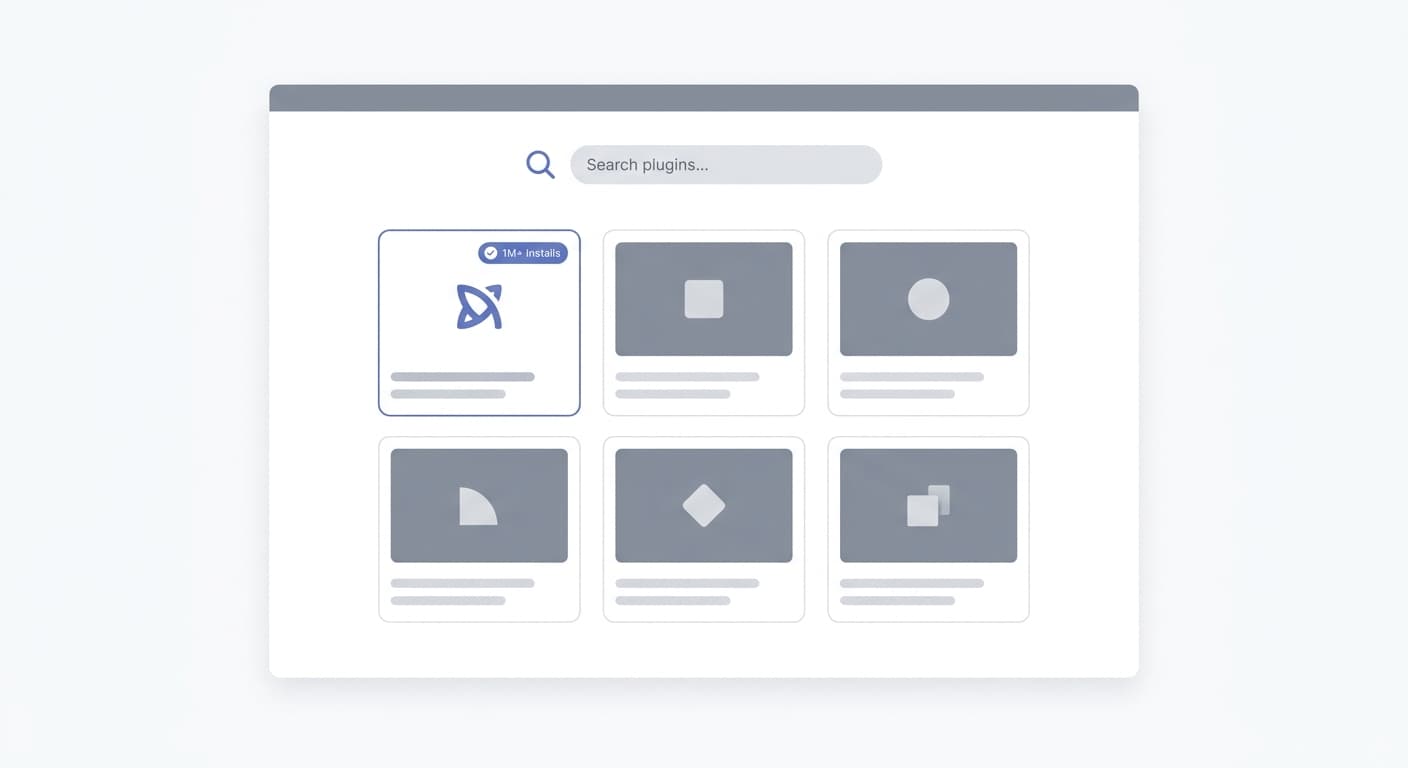
Website LLMs.txt by Ryan Howard is the most widely adopted llms.txt plugin in the WordPress ecosystem, with 30,000+ active installs and a 4.6-star rating.
Install it from Plugins > Add New, search for “Website LLMs.txt,” and activate. The plugin automatically generates and serves both llms.txt and llms-full.txt from your domain root. It integrates with Yoast SEO, Rank Math, SEOPress, and AIOSEO to automatically exclude noindex pages from the generated file.
It also includes an AI crawler detection log so you can see when GPTBot, ClaudeBot, or PerplexityBot actually reads your file.
Already have AIOSEO installed? You can turn this on right now
If your site uses All in One SEO (AIOSEO), you already have llms.txt support. Go to All in One SEO > Sitemaps > LLMs.txt and enable the toggle. The free version generates a basic llms.txt. The Pro version adds llms-full.txt and Markdown conversion for richer AI context.
Want AI to know your full site? Use LLMs-Full.txt Generator too
The LLMs.txt and LLMs-Full.txt Generator by visibility.so generates both files simultaneously and gives you wildcard URL include/exclude rules, for example /products/* or /private/*. It has a 5-star rating with 4,000+ installs and is the best option for sites with large content libraries or e-commerce catalogs that need precise control.
For most small business WordPress sites, Website LLMs.txt or AIOSEO is the right call. Install, activate, and you are done in under five minutes.
Prefer Doing It Yourself? Here Is How to Create and Upload llms.txt Manually
Copy this exact template and fill in your own business details
Create a new plain text file and name it llms.txt. Use this template:
# [Your Business Name]

> [One sentence describing what you do and who you serve.]

## Services
- [Service Name](https://yourdomain.com/service-page): Brief description.
- [Service Name](https://yourdomain.com/service-page): Brief description.

## About
- [About Us](https://yourdomain.com/about): Brief description.
- [Contact](https://yourdomain.com/contact): How to reach you.

## Optional
- [Blog](https://yourdomain.com/blog): Your content archive.
Put your most important pages first. The blockquote at the top is your one-line pitch to AI. Write it as a clear, direct statement of what you do. “Digital marketing agency for medical practices in Los Angeles” beats “We help businesses grow.”
How to upload it to your WordPress root folder using FTP
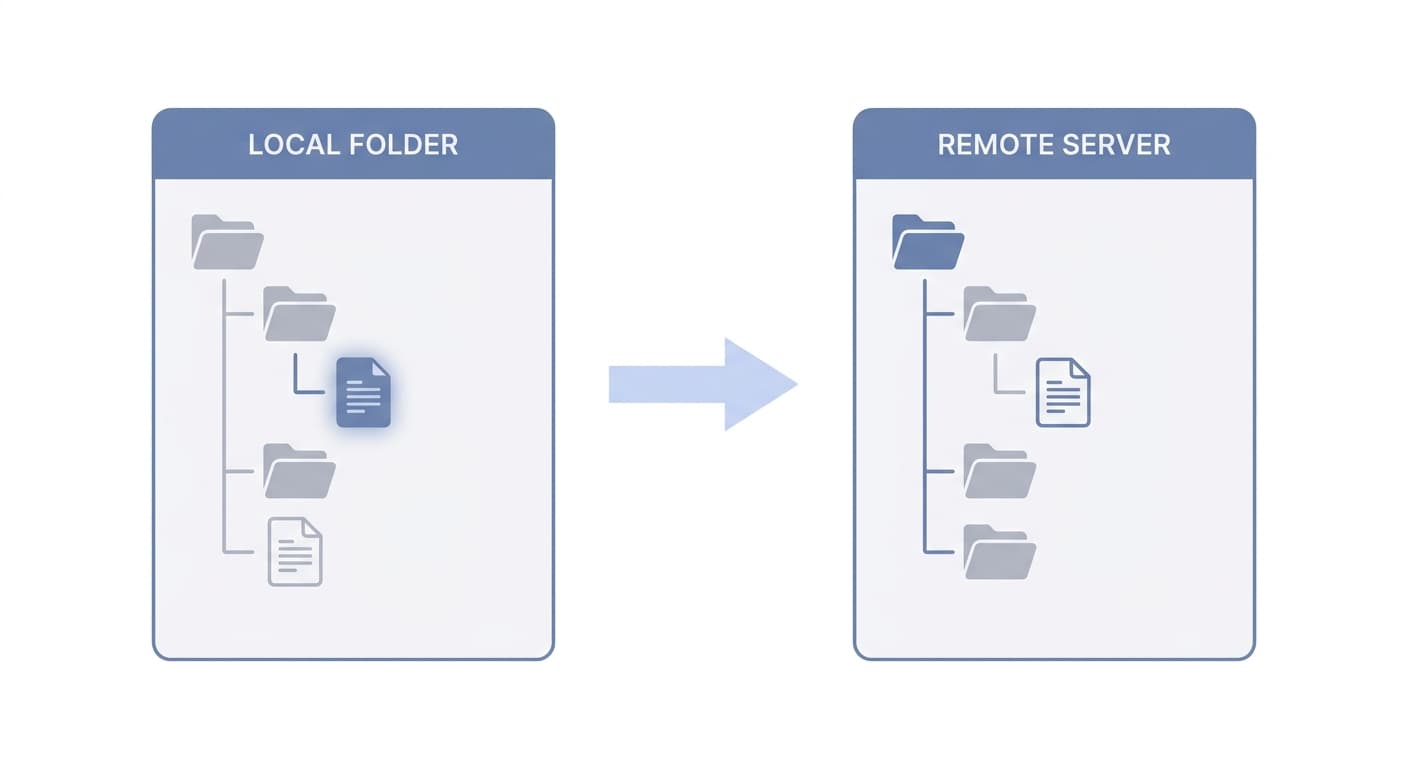
Open FileZilla or your hosting control panel's File Manager. Connect to your server. Navigate to your public_html directory, which is your domain root. Upload llms.txt here.
Once uploaded, visit yourdomain.com/llms.txt in your browser to confirm the file is live. You should see the plain text content. If you see a 404, the file is in the wrong directory.
On WordPress.com? Read this before you spend 30 minutes confused
WordPress.com restricts SFTP file access to Business and Commerce plan subscribers. If you are on a Basic, Personal, or Premium plan, you cannot upload files to your domain root directly.
Your options: upgrade to a Business or Commerce plan, or use the Website LLMs.txt plugin if it is available for your plan tier. If you are self-hosting with WordPress.org software, this restriction does not apply.
How to Know If ChatGPT Is Actually Reading Your llms.txt (Do Not Skip This)
The 30-second check anyone can do right now
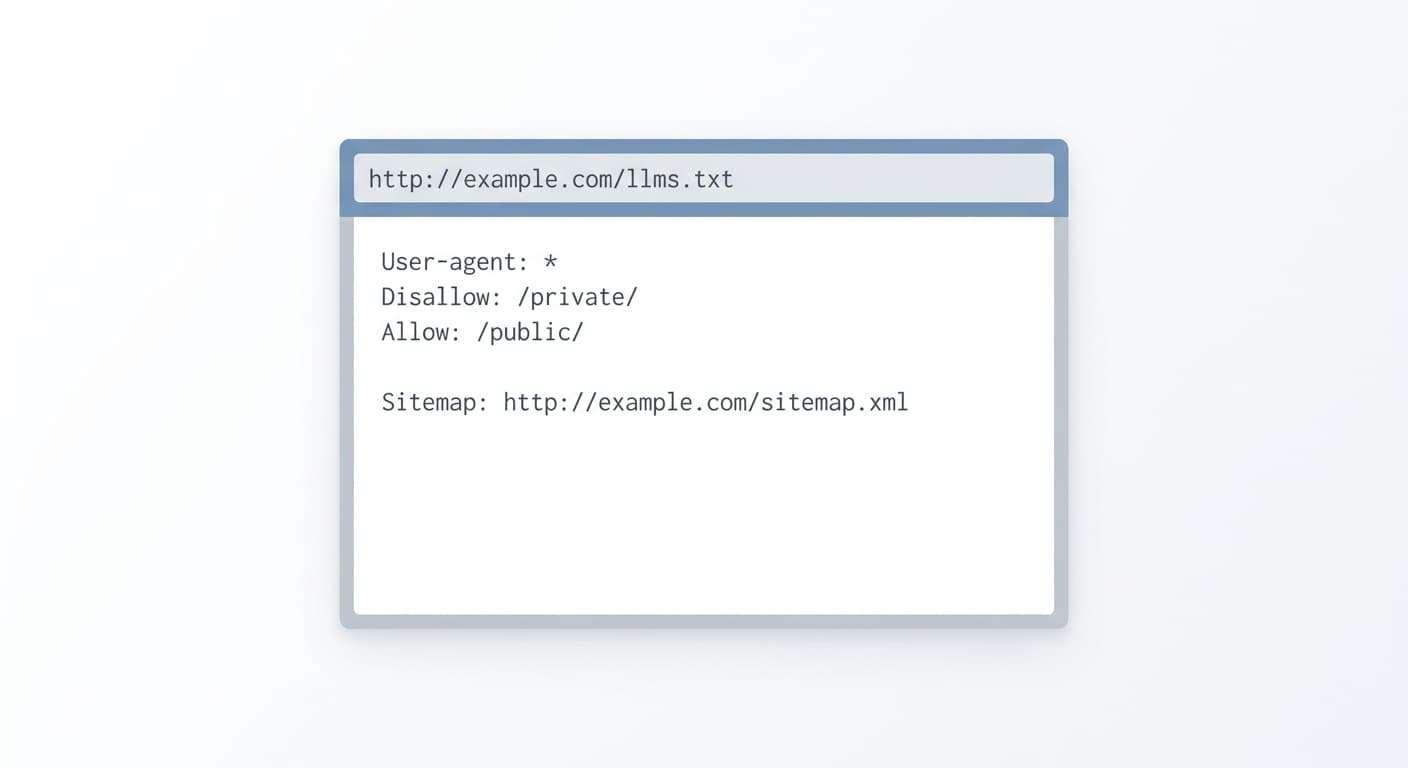
Visit yourdomain.com/llms.txt in your browser. If the file loads as plain text, it is publicly accessible. If you see a 404, an HTML page, or a redirect, something is wrong with the placement.
How to spot AI bots in your server logs
AI crawlers leave fingerprints in your server access logs. Look for these user-agent strings:
GPTBot(OpenAI / ChatGPT)ClaudeBot(Anthropic / Claude)PerplexityBot(Perplexity)
If you see requests from these agents to /llms.txt, the file is being read. If your log shows these bots visiting your site but not requesting /llms.txt, check your file placement.
Three prompts to ask ChatGPT or Perplexity about your own business
Once your file is live, test it directly. Paste these prompts into ChatGPT and Perplexity:
- “What does [your business name] do?”
- “What services does [your domain] offer?”
- “What is [your business name] known for?”
Compare the answers to what your llms.txt actually contains. If the AI describes your business incorrectly or incompletely, update the file and retest in a few days. This is how you close the feedback loop.
For a broader look at how to improve your AI visibility beyond this file, see our guide on how to rank in AI search.
Frequently Asked Questions
Do I need llms.txt if I already have a sitemap?
Yes. A sitemap tells search crawlers which pages exist at crawl time. llms.txt tells AI agents what your site covers at inference time, when a user is actively asking a question. They serve different systems at different moments.
Where does the llms.txt file go in WordPress?
It goes in your domain root, the same folder as your wp-config.php file. After uploading, it should be accessible at yourdomain.com/llms.txt. Plugins like Website LLMs.txt handle placement automatically.
What is the difference between llms.txt and llms-full.txt?
llms.txt is a concise summary with links to your key pages. llms-full.txt is a comprehensive version that includes the full content of those pages. AI agents visit llms-full.txt more than twice as often as the shorter file, according to Profound data. If you can generate both, do it.
Can robots.txt block AI agents from reading my llms.txt?
Yes. If your robots.txt disallows a specific AI crawler user-agent like GPTBot or ClaudeBot, that crawler will not read your llms.txt regardless of whether the file exists. Always check robots.txt first.
I am on WordPress.com. Can I add llms.txt?
Only on Business or Commerce plans, which include SFTP file access. Users on Basic or Personal plans cannot upload files to the domain root directly. Look for a plugin that serves the file virtually, or upgrade your plan.
Get Your AI Visibility Score
Find out where you rank in ChatGPT, Claude, and Perplexity, and what is blocking you.
Get My Free AI Audit →